

Summary
DoglyTdc provides web push notifications and a dashboard inbox. Enabling push registers the browser you are using. Browser permission and notification categories are separate controls.Who it is for
- People waiting for support replies.
- Hub users following messages and mentions.
- Users reviewing announcements from the DoglyTdc team.
How to open
1
Open Settings
Sign in and open dashboard settings.
2
Choose Notifications
Find the push notifications card.
3
Review permission
Check whether your browser allows notifications for the site.
Screens and features
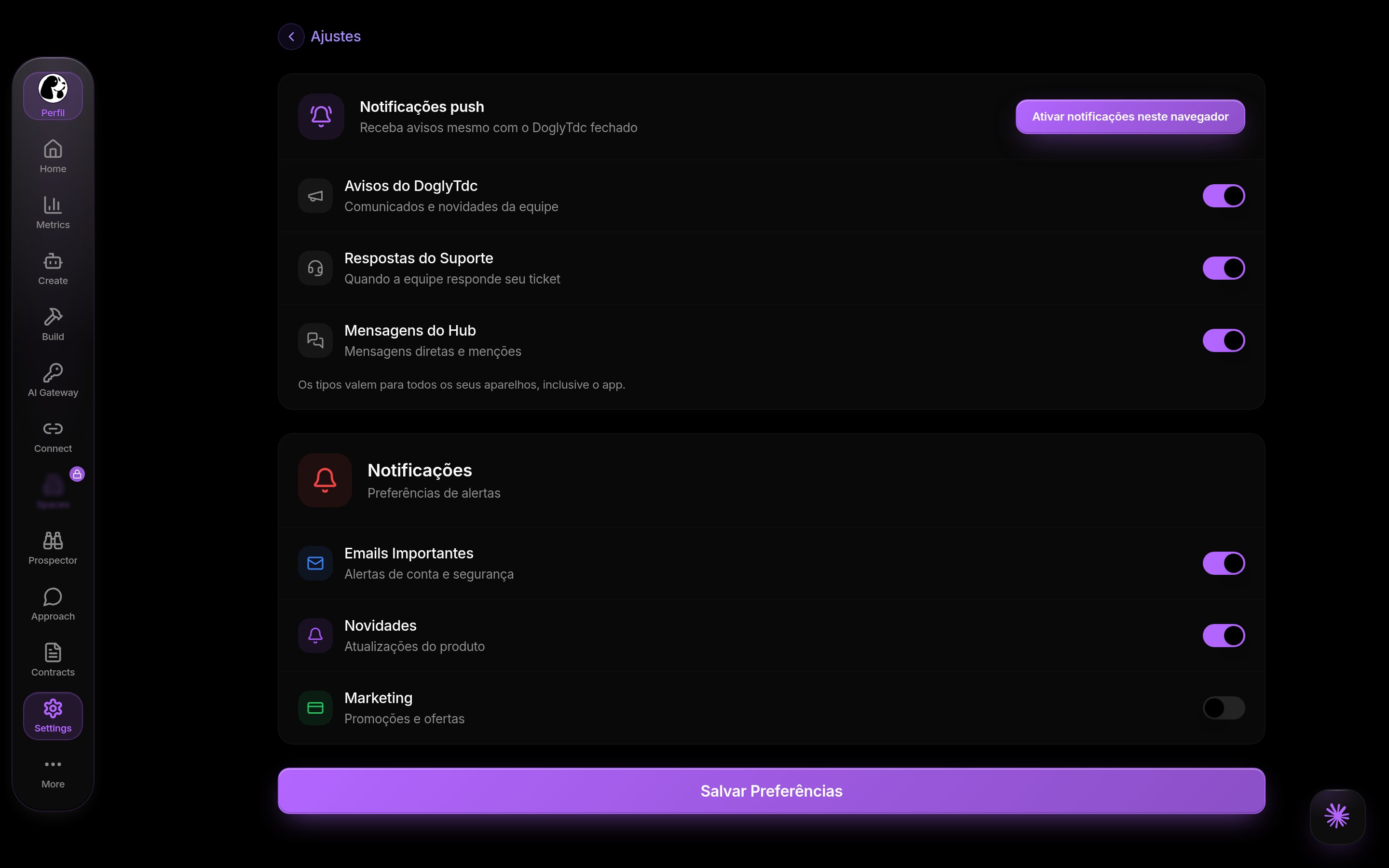
Notifications in DoglyTdc
Push in this browser
Enabling push requests browser permission when needed. Activation applies to the registered browser. Disabling it here removes push registration for this browser. Delivery still depends on the browser and notification service.1
Enable the control
Choose to receive notifications in the current browser.
2
Allow browser notifications
Accept the browser prompt.
If previously blocked, review site settings next to the address bar.
3
Send a test
Use the test to check whether the registration can receive an alert.
Notification categories
Separate preferences cover DoglyTdc announcements, Support replies, and Hub messages. These push preferences are saved for the account. If saving fails, the control returns to its previous value.Delivery test
The test distinguishes missing devices, expired registration, and sending failures. A successful send does not guarantee immediate display by the operating system. Wait a few seconds before trying again.Email controls
The screen also includes email, marketing, and product update switches. These separate controls remain in the screen’s local state. This implementation does not save them on the server. Do not treat these switches as a guaranteed email subscription or unsubscribe action.Inbox
The inbox is separate from browser push. Invitations and other alerts may require action within the dashboard. Receiving push does not replace opening and reviewing the corresponding content.Limits
- The browser must support push notifications.
- Editor previews may require opening the site in its own tab.
- Expired registration needs to be disabled and enabled again.
- Email controls on this screen do not persist on the server.
Permissions
Sign in to register a browser and save push preferences. Allow the site to send notifications in your browser. Your account cannot override a browser-level block.Common errors
Original interface messages are retained below.Frequently asked questions
Does this enable all my browsers?
Does this enable all my browsers?
No. Activation applies to the current browser.
Are push categories saved?
Are push categories saved?
Yes. Push category preferences are persisted for your account.
Are email controls saved?
Are email controls saved?
Not on the server through this screen. They do not guarantee an unsubscribe action.
What should I check if the test does not appear?
What should I check if the test does not appear?
Review site permission, browser registration, and the message returned by the test.