

Who it is for
For people getting started with their own account.How to open
Dashboard › Account and profile/dashboard?tab=settings
Screens and features
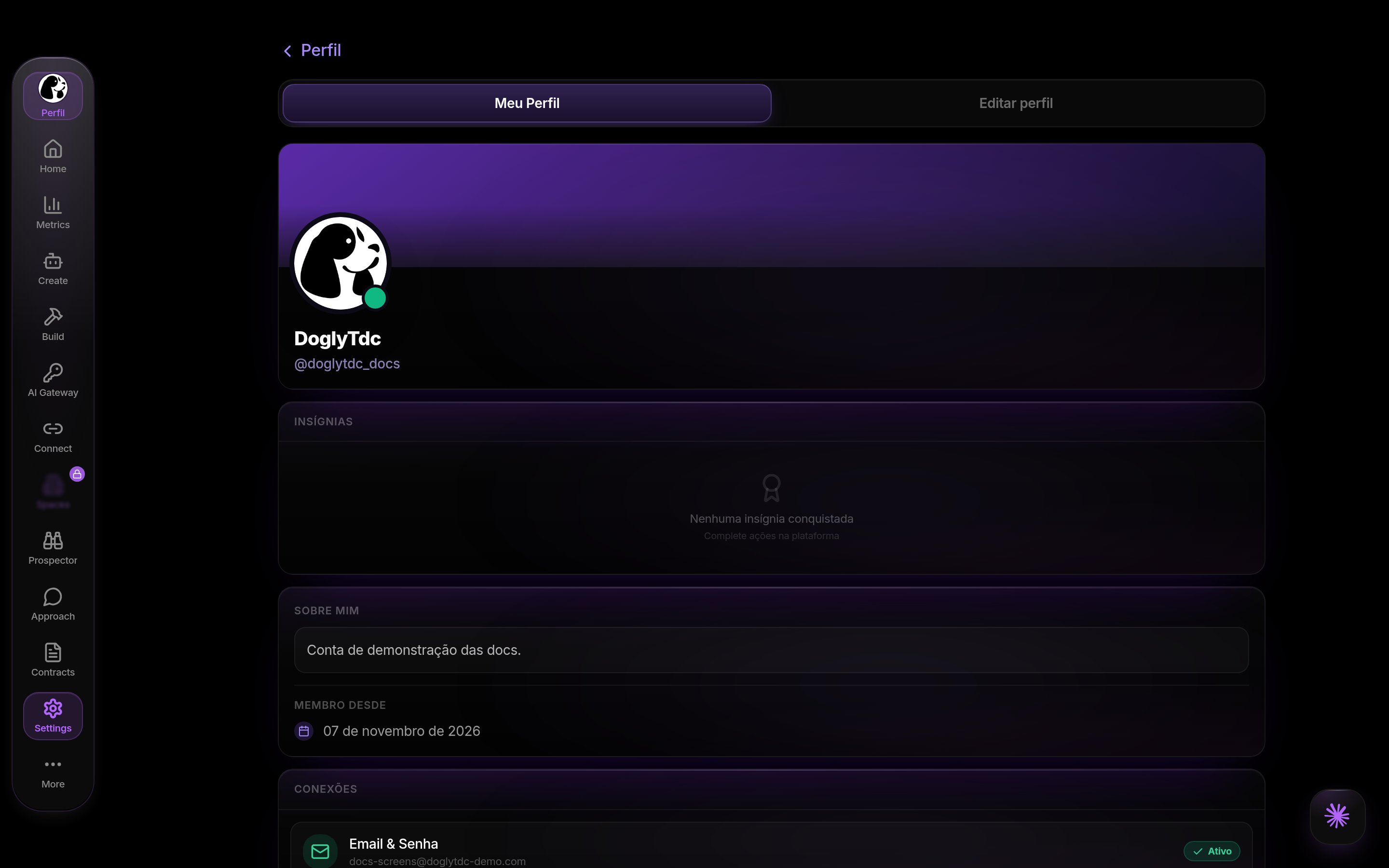
Account and profile in DoglyTdc
Information
In Settings › Profile, edit name, nickname, phone and bio. Save and wait for Perfil atualizado. Bio allows 250 characters; nickname and status fields allow 50.1
Open your profile
Go to Settings › Personal information.
2
Edit the fields
Change name, nickname, phone and bio (up to 250 characters).
3
Save
Click save and wait for the profile-updated message.
@username
Use 3–24 characters: lowercase letters, numbers, periods and underscores. Wait for availability and save. Reserved or taken names are rejected.1
Find the @ field
In Personal information, find your @.
2
Type the new @
Use 3 to 24 characters: lowercase letters, numbers, dot and underscore. Wait for the availability check.
3
Save
Save once the @ shows as available. A taken or reserved @ is rejected.
Photo
Choose PNG, JPG, WebP or GIF up to 8 MB. Adjust cropping when offered and wait for Avatar atualizado. You can also remove the photo.1
Choose the image
In Personal information, click your photo and pick a PNG, JPG, WebP or GIF up to 8 MB.
2
Adjust the crop
Position the image when the crop appears and confirm.
3
Check
Wait for the avatar-updated message. To remove the photo, use the remove option.
Presence
Available, Away, Do not disturb and Invisible are the presence options. Invisible lets you use the account while appearing offline; it does not hide the whole public page.1
Open presence
Click your presence status.
2
Pick a state
Choose Available, Away, Do not disturb or Invisible.
3
Check
The new state appears on your profile. Invisible shows you as offline without hiding your public page.
Public profile
The public profile shows photo, name, @, Online or Offline, status and bio when supplied. It does not show phone or email. It can be viewed without signing in. An unknown @ shows a not-found state.1
Open your public profile
Visit your profile address with your @.
2
Check what shows
Photo, name, @, Online/Offline, status and bio when filled in. Phone and email are never shown.
3
Share
Send the link; it opens even for people who are not signed in.
Credits and limits
Browsing and editing your profile do not spend credits. Tool actions may use your balance.Permissions
Sign in to edit your data. Spaces and Workspaces require Premium or higher for ordinary access.Common errors
Frequently asked questions
Do I need a subscription?
Do I need a subscription?
Browsing and profile editing do not require a subscription; tools may require plans.
Are Pay and credits the same?
Are Pay and credits the same?
No. They are separate balances.
Does a shortcut unlock access?
Does a shortcut unlock access?
No. Permission checks still apply.
Related
Create account
Create your account, confirm your email, recover your password and finish the welcome setup.
Dashboard
Move around Home, the menus, the Modular Menu and dashboard addresses.