

Summary
Scripts brings together script creation, editing and distribution. Its navigation includes projects, marketplace, synchronization and integrations. You can work in the interface and use integration tools. This page helps you choose a path without duplicating the product manual. Start with the Scripts introduction.Who it is for
- People creating scripts.
- Developers editing existing projects.
- Authors publishing and selling scripts.
- Teams connecting repositories and automation.
- Users installing or starting the workflow through the CLI.
How to open
1
Sign in
Open your DoglyTdc account.
2
Open Scripts
Select the Scripts application. Use its own navigation to switch areas.
3
Choose your goal
Open an existing project or choose the creation option.
Screens and features
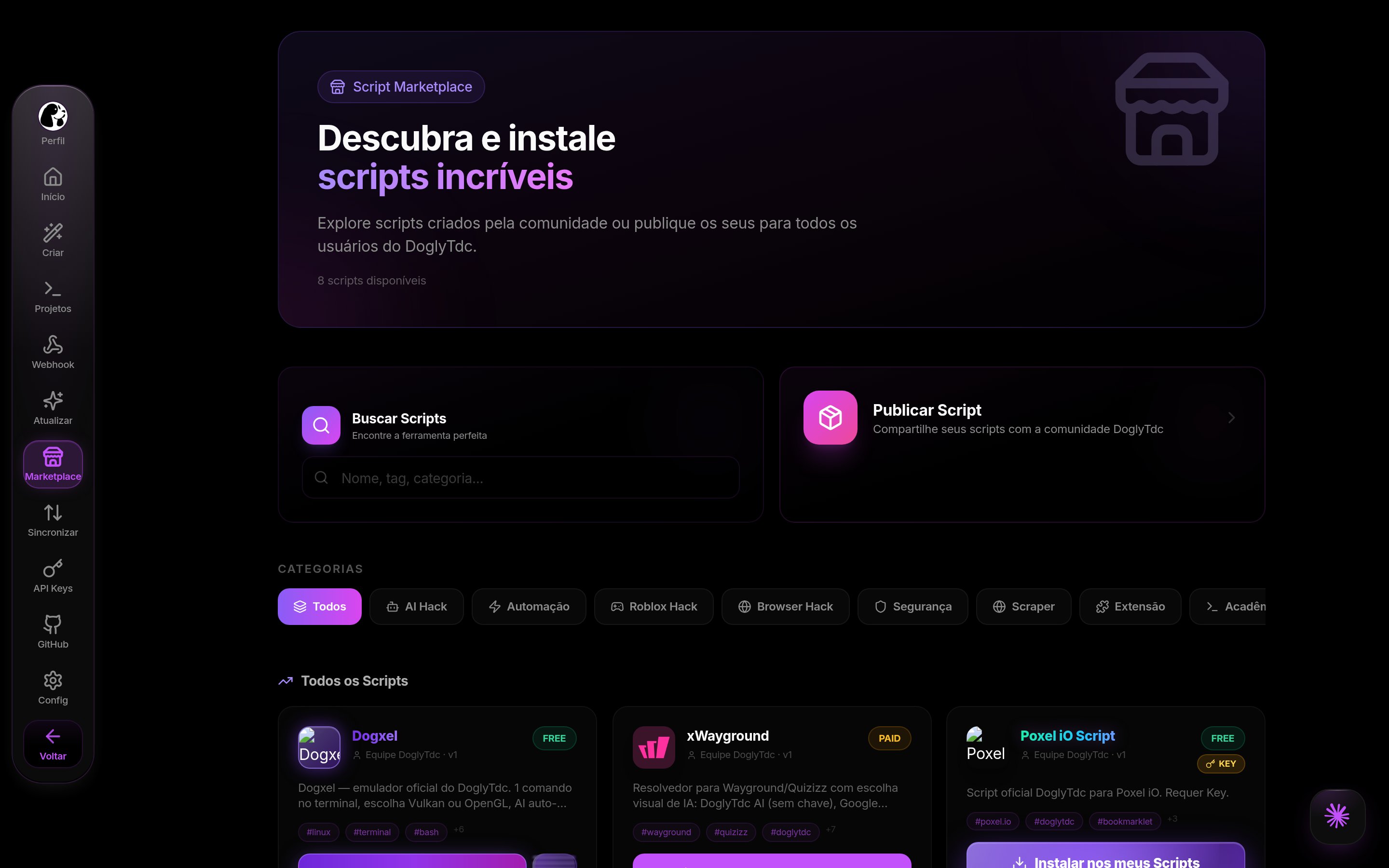
Scripts Marketplace
Home and creation
Home is the entry point to Scripts. Navigation offers script creation and updating. Manual creation includes project information and a logo. Logo uploads accept images up to 3 MB. See Create and the Quickstart.Projects and editor
Projects let you resume work on existing scripts. The editor and project structure have dedicated documentation. Branches and versions separate development stages. Editing a project is not the same as publishing a new version to users.Marketplace and publishing
The marketplace is separate from editing. Publishing, selling and user access have their own rules. Check these guides before distributing a script.Keys and integrations
Navigation includes API keys, GitHub and settings. Provider credentials authorize a corresponding feature to use an external service. Scripts integration credentials identify an application or client accessing Scripts. These credentials are not interchangeable. Do not use provider credentials in place of Scripts API authentication. See the API guide.Webhooks and synchronization
Webhooks handle events according to the configured integration. Synchronization and GitHub connections have their own navigation areas. Configure each integration for its intended purpose. Do not expose credentials in shared URLs or public repositories. See Webhooks.CLI and MCP
Start the CLI with:1
Open a terminal
Use an environment that supports npx.
2
Start the CLI
Run the command and follow the displayed instructions.
3
Choose the integration
For MCP clients, follow the dedicated installation and connection guides.
Credits and limits
No single allowance describes every Scripts operation. Creation, AI features and integrations must be checked in their own workflows. Your provider credentials are not internal DoglyTdc credits. Read Limits before automating requests.Permissions
Use an account with access to the project. User access, publishing and integration are separate responsibilities. Keep credentials private. Review connection approvals before allowing external actions.Common errors
The following are original interface messages.Frequently asked questions
Can a provider key authenticate to the Scripts API?
Can a provider key authenticate to the Scripts API?
No. Provider credentials and Scripts integration credentials serve different purposes.
Where is the complete reference?
Where is the complete reference?
In the dedicated Scripts documentation, including API, webhooks, MCP and limits.
Must I work only in the interface?
Must I work only in the interface?
No. The product also provides a CLI and MCP integration documented separately.