

Overview
The Status page displays service health and maintenance information. The screen runs checks when opened and refreshes automatically every 45 seconds. A separate server monitor is scheduled every 5 minutes. These are different cycles: refreshing the screen does not bring forward a server monitoring run.Who it is for
- People checking a possible outage.
- Users experiencing slow responses or connection failures.
- Teams reviewing maintenance and recent history.
How to open
1
Open Status
Open the platform’s Status page.
2
Check the summary
Read the overall status and identify affected services.
3
Review the details
Check service indicators, maintenance, and recent history. Use Atualizar to repeat the screen’s checks.
Screens and features
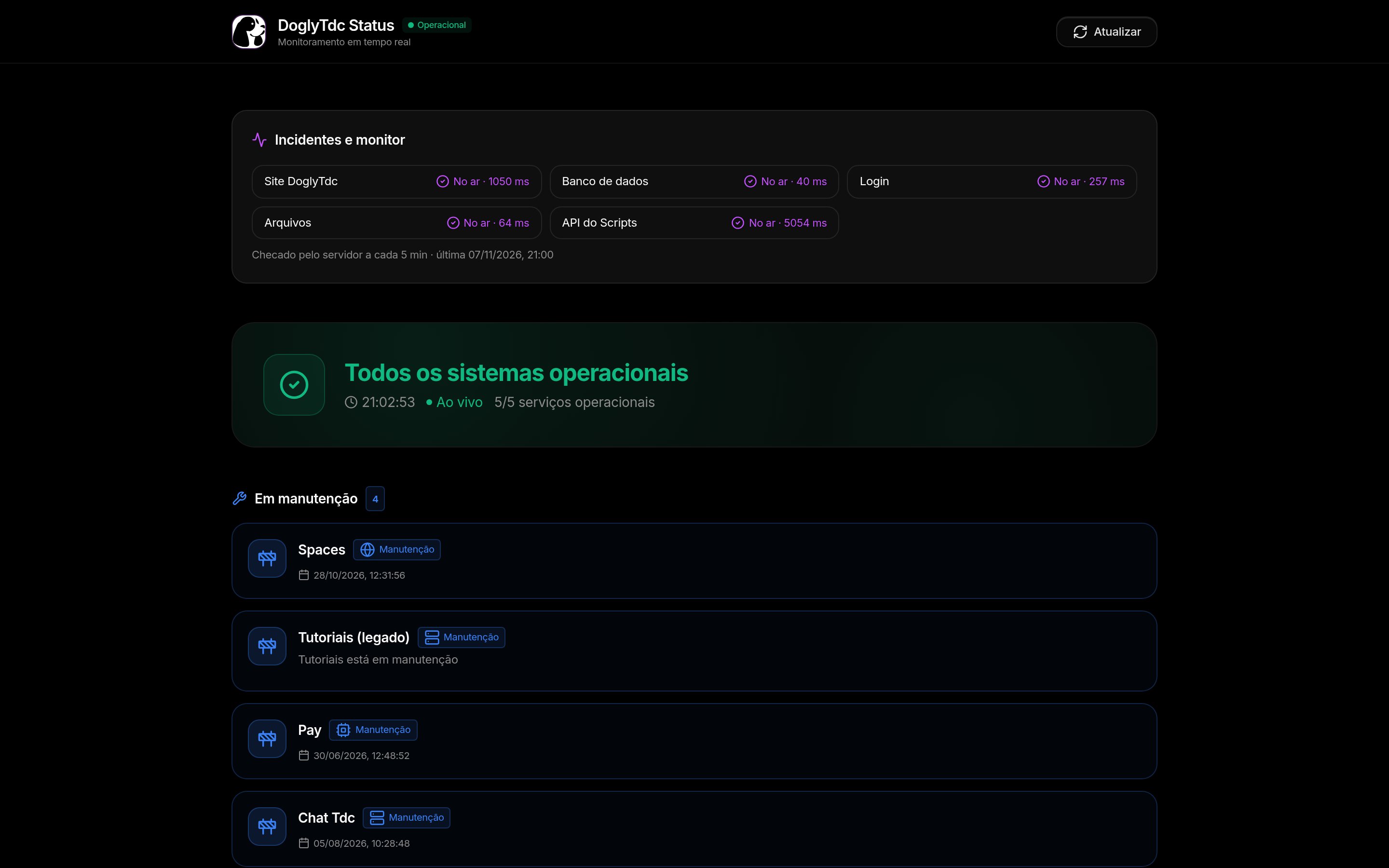
Status in DoglyTdc
Overall health and services
Indicators distinguish normal operation, degradation, outage, maintenance, and checks in progress. The screen checks data connectivity, authentication, files, service processing, and the real-time connection. Some cards display response times in milliseconds. Screen measurements may reflect the viewer’s connection and session.Maintenance and history
Active maintenance can replace the normal indicator for the corresponding service. The screen displays maintenance information and recent history with open or resolved records. An empty history does not prove that failures have never occurred.Refresh and monitoring
The screen’s 45-second refresh is independent of the server monitor’s 5-minute schedule. The monitor checks the website, data, sign-in, files, and Scripts availability. Alerts depend on configuration and consecutive failures; they do not provide instant detection.1
Refresh your view
Use Atualizar and wait for checks to finish.
2
Compare indicators
Look for maintenance or degradation affecting the service you use.
3
Record the context
If you need help, include the time, service, and action that failed.
Credits and limits
Status indicators do not show your account’s credit balance. An operational status does not guarantee that every action or account can access every feature. Tests cover specific checks, not a complete validation of every feature.Permissions
Some checks depend on your session and the access available in the browser. A restricted-access response is not necessarily treated as a general outage. Viewing Status does not grant permission to configure services or alerts. Do not share credentials to demonstrate a failure.Common errors
Quoted messages retain their Portuguese interface wording.
If the problem continues, provide the time and observed indicators without private data.
Frequently asked questions
Does the server monitor run every 45 seconds?
Does the server monitor run every 45 seconds?
No. The screen refreshes every 45 seconds; the server monitor is scheduled every 5 minutes.
Does refreshing force a server monitoring run?
Does refreshing force a server monitoring run?
No. The button repeats the screen’s checks, not the independent monitor’s cycle.
Does an operational status guarantee my action will work?
Does an operational status guarantee my action will work?
No. Permissions, session state, your local connection, and failures beyond the tests’ scope may still affect it.