

Who it is for
For people getting started with their own account.How to open
Dashboard › Dashboard/dashboard
Screens and features
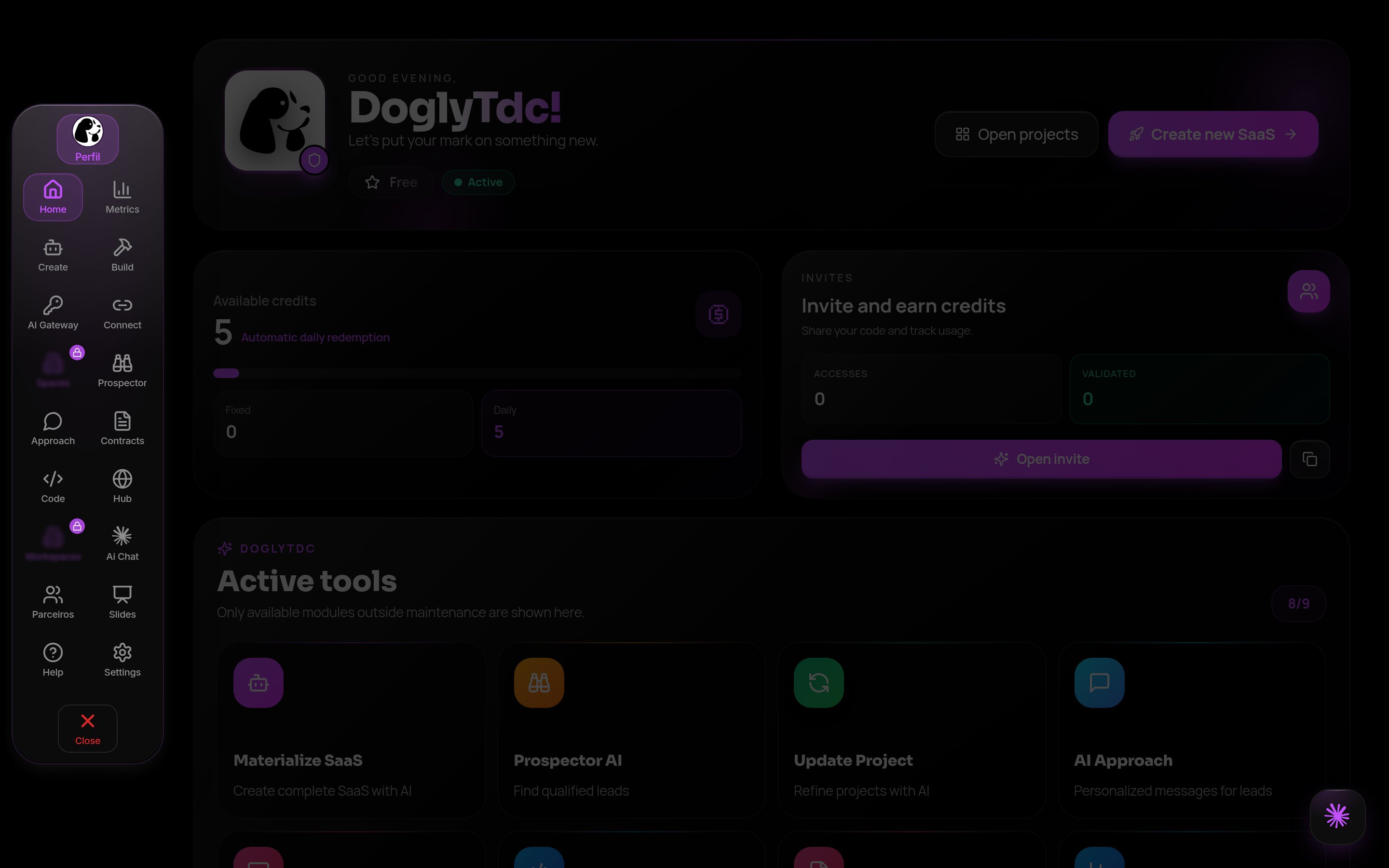
Dashboard in DoglyTdc
Home
Home differs for Free and subscribers, with balance, cards and shortcuts. A visible card does not guarantee access.1
Open Home
Sign in and open the dashboard at
/dashboard. Home is the first screen.2
Read the cards
Check your credit balance and the shortcut cards shown for your plan.
3
Follow a shortcut
Click a card to open the feature. If it needs another plan, the dashboard tells you before granting access.
Menus and More
Use the sidebar or bottom bar according to appearance and screen size. More shows other destinations. Esc and browser Back can close the grid; the active item stays visible.1
Use the bar
On a computer, use the sidebar; on a phone, the bottom bar.
2
Open More
Tap More to see every feature in a grid.
3
Close the grid
Pick a destination, press Esc or use the browser back button.
Modular menu
A modular feature has its own screens. Contracts, Slides and Connect replace navigation with a feature menu. Use its Back action to return to the designated destination.1
Open the feature
Open Contracts, Slides or Connect from the menu.
2
Move between modules
The bar now lists the feature’s own screens, such as Create or Projects.
3
Go back
Use Back at the top of the Modular Menu to return to the previous destination.
Addresses with ?tab=
The address preserves recognized screens on reload, Back and Forward. Examples: ?tab=contracts:create, ?tab=slides:projects and ?tab=connect:automation. An unknown internal screen falls back to feature home.1
Open an inner screen
Inside a feature, open the screen you need, for example Contracts › Create.
2
Copy the address
The browser shows something like
/dashboard?tab=contracts:create. Save or share that link.3
Reopen
Opening the link, reloading or using back/forward returns you to the same screen.
Search and redirects
The reviewed navigation components have no global feature search. Search belongs to individual tools. AI Chat, Build Studio, Pay and Hub open their own destinations; Spaces and Workspaces check access and redirects. Tutorials is still locked while in development.1
Choose the feature
Open the feature from the menu or More; there is no global feature search.
2
Search inside it
Use the tool’s own search field, when it has one.
3
Follow the redirect
AI Chat, Build Studio, Pay and Hub open in their own screens; Spaces and Workspaces check your access before opening.
Address map
Credits and limits
Browsing and editing your profile do not spend credits. Tool actions may use your balance.Permissions
Sign in to edit your data. Spaces and Workspaces require Premium or higher for ordinary access.Common errors
Frequently asked questions
Do I need a subscription?
Do I need a subscription?
Browsing and profile editing do not require a subscription; tools may require plans.
Are Pay and credits the same?
Are Pay and credits the same?
No. They are separate balances.
Does a shortcut unlock access?
Does a shortcut unlock access?
No. Permission checks still apply.
Related
Create account
Create your account, confirm your email, recover your password and finish the welcome setup.
Account and profile
Edit your name, @, photo and presence, and see what your public profile shows.