

Overview
Script Sync brings together workspace member synchronization and individual sharing. The dashboard tracks the status of synchronized scripts. Sharing lets you send requests, accept or reject them, and revoke access. Sharing access does not give the recipient the script’s code.Who it is for
- People distributing scripts to workspace members.
- People sharing their own scripts with someone else.
- People accepting requests or tracking granted access.
- People who need to end shared access.
How to open
Go to Dashboard › Script Sync. The entry uses?tab=script-sync and opens the workspace owner’s synchronization dashboard.
In the Scripts tool, the synchronization manager provides Workspace and User tabs.
The User tab contains Send, Requests, and Access.
Screens and features
Script Sync in DoglyTdc
Workspace dashboard
The dashboard lists active dashboard workspaces owned by the signed-in account. Select a workspace to view members and synchronization records. Statuses include Synced, Pending, Failed, and Outdated. Use Sync All or a script’s individual action, then check the result. A completion message may report both synchronized scripts and errors in the same operation.Workspace manager
The Workspace tab lets you select scripts and members for synchronization. One-time and real-time synchronization modes are available. In real-time mode, changes to the owner’s scripts trigger synchronization while the integration is active on this screen. Do not treat this mode as a guarantee of continuous operation after closing the screen.Send individual access
Choose a person by username or an available workspace. Sending to a person creates a request that they must accept. For a workspace, the interface states that members receive access immediately. The sharing warning explains that recipients use the script individually without viewing its code, deleting it, or managing it.1
Choose the destination
In the User tab, open Send and choose Person or Workspace.
Check the recipient and read the warning before continuing.
2
Select scripts
Choose between 1 and 50 scripts you own.
Check which items are already available to the destination before proceeding.
3
Review and send
Check the destination and selected scripts.
If needed, write an optional message of up to 300 characters and send.
4
Check the result
Verify whether a request was sent or access was granted.
For individual requests, wait for the recipient to accept.
Requests
The Requests tab contains received and sent requests. Recipients can accept or reject pending requests. After acceptance, the interface confirms that the scripts appear in My scripts. Senders can cancel a pending request. Displayed statuses include Pending, Accepted, Rejected, Ignored, Cancelled, and Expired.Access and revocation
The Access tab shows scripts shared with you and access you have granted. Use Revoke to withdraw granted access. For received scripts, Leave appears when that action is available. After successful revocation or leaving, the interface reports that the individual favorite was deactivated immediately. Cancelling a pending request and revoking existing access are different actions.Credits and limits
No DoglyTdc credit deduction was identified in these components. When sending from the User tab, select at least 1 and at most 50 scripts per submission. The optional message accepts up to 300 characters. These limits apply to sharing submissions, not to the workspace dashboard as a whole. Too many consecutive submissions may be blocked; the displayed guidance is to wait one minute.Permissions
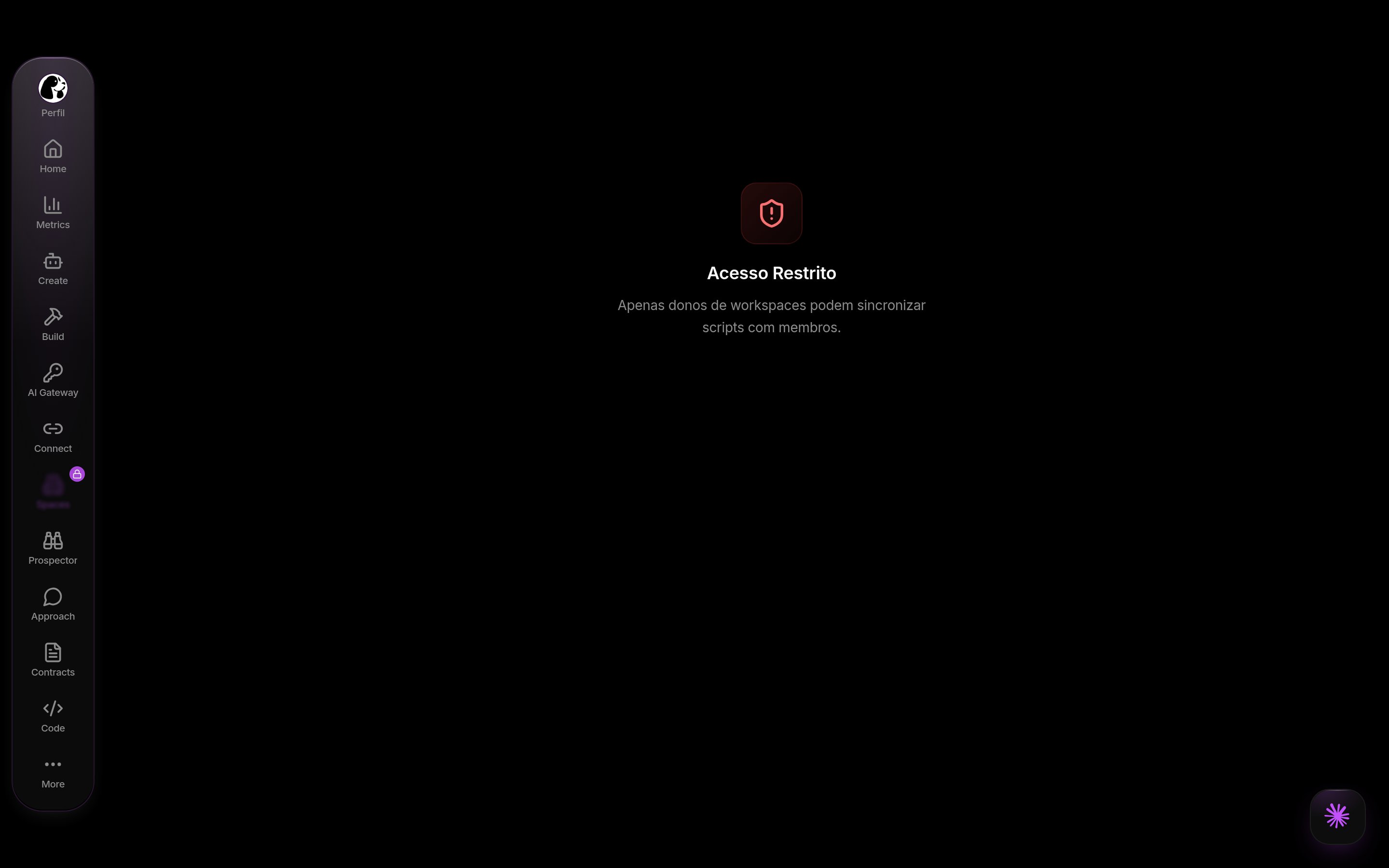
The Script Sync dashboard is restricted to workspace owners. The workspace manager accepts owner, administrator, and developer roles. To select a workspace as a destination in the User tab, you must be its owner or an administrator. You can only share scripts you own, and you cannot send to yourself. Shared individual access does not allow recipients to view the code, delete the script, or manage it.Common errors
Frequently asked questions
Does the recipient need to accept?
Does the recipient need to accept?
A person must accept the request. When sending to a workspace, the interface states that members receive immediate access.
Does sharing reveal the code?
Does sharing reveal the code?
No. Individual access allows recipients to use the script, but not view its code, delete it, or manage it.
Can I withdraw access later?
Can I withdraw access later?
Yes. Use Revoke under Access. For a request that is still pending, use Cancel request.
Where do the 50-script and 300-character limits apply?
Where do the 50-script and 300-character limits apply?
To sharing submissions in the User tab: up to 50 scripts per submission and an optional message of up to 300 characters.