

Summary
AI Gateway provides API access to models and key management. The panel includes overview, models, keys, usage, billing, and documentation. Requests consume paid credits. Your total balance is not the same as your Gateway-eligible balance. Other credits do not automatically replace paid credits.Who it is for
- Developers integrating AI models.
- Teams separating access by key.
- People restricting models and origins.
- People investigating recent requests and charges.
How to open
Go to Dashboard › AI Gateway, using?tab=ai-gateway.
Subsections use entries such as ?tab=ai-gateway:overview.
The dashboard tracks the selected section internally.
The screen has access controls for Premium and Business.
Access to the panel does not remove the paid-credit requirement.
Screens and features
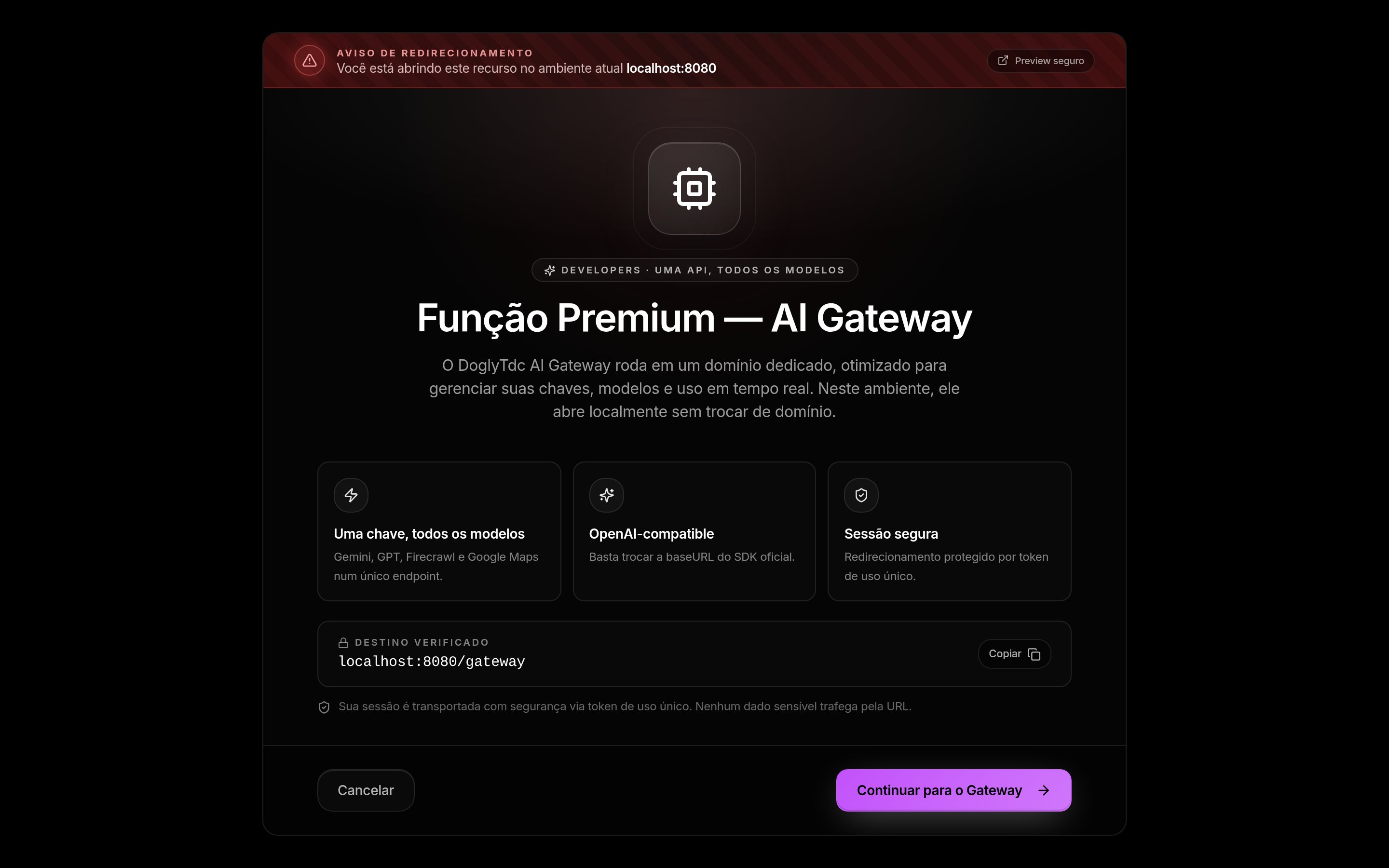
AI Gateway in DoglyTdc
Overview
The overview summarizes access and usage. Check paid credits before starting an integration. Do not estimate capacity from the total balance alone.Models
The catalog presents available Gateway models. Use the identifiers shown in the interface documentation. A key can restrict the models an integration may request.Keys
Each key has a name, status, and scope. Creation includes model, origin, monthly credit, and request-rate settings. The complete credential is shown only once.1
Define the purpose
Create a key for the intended integration.
Give it a recognizable name.
2
Restrict access
Select allowed models and origins.
Set limits appropriate to expected usage.
3
Store the credential
Copy it when the key is created.
Store it securely outside public content.
4
Test and monitor
Request an allowed model.
Check status, latency, and charges in usage.
Per-key restrictions
Model lists define the key’s model scope. Origin lists define authorized domains. Broad settings can allow all models or any origin. Monthly caps are expressed in credits. Rate limits are expressed in requests per minute. An unset limit does not mean an unlimited balance.Key status
Keys can be disabled and enabled. Revocation differs from temporary disabling. Requests report distinct errors for revoked and disabled keys.1
Identify the key
Check its name and visible identifying information.
Avoid affecting the wrong integration.
2
Choose an action
Disable the key to stop its use.
Revoke it when the credential must be invalidated.
3
Check the integration
Ensure the application uses a valid key.
Do not keep retrying with a revoked credential.
Usage
The screen loads up to 100 recent records. Live additions also keep only the latest 100 records. This is not a complete historical archive. Records include model, origin, status, latency, and charged credits. Use them to inspect recent failures and spending. Missing older entries do not prove there was no earlier usage.Billing and documentation
Billing separates paid credits from other credits. Documentation includes integration examples and error codes. Use the examples displayed for your current environment.Credits and limits
- Gateway calls consume paid credits.
- Other credits appear separately.
- Keys can have monthly credit caps.
- Keys can have per-minute request limits.
- Model and origin restrictions apply even with sufficient balance.
- Usage displays up to 100 recent records.
Permissions
The panel checks feature access by plan. Calls require a valid, active, non-revoked key. The requested model and origin must also be allowed. Never publish credentials in examples or public repositories.Common errors
Frequently asked questions
Can Gateway use every credit in my account?
Can Gateway use every credit in my account?
No. It uses paid credits and distinguishes them from other credits.
Can I retrieve the complete credential later?
Can I retrieve the complete credential later?
The interface states it is shown only once. Store it securely during creation.
Does usage show the full history?
Does usage show the full history?
No. It shows up to 100 recent records.